
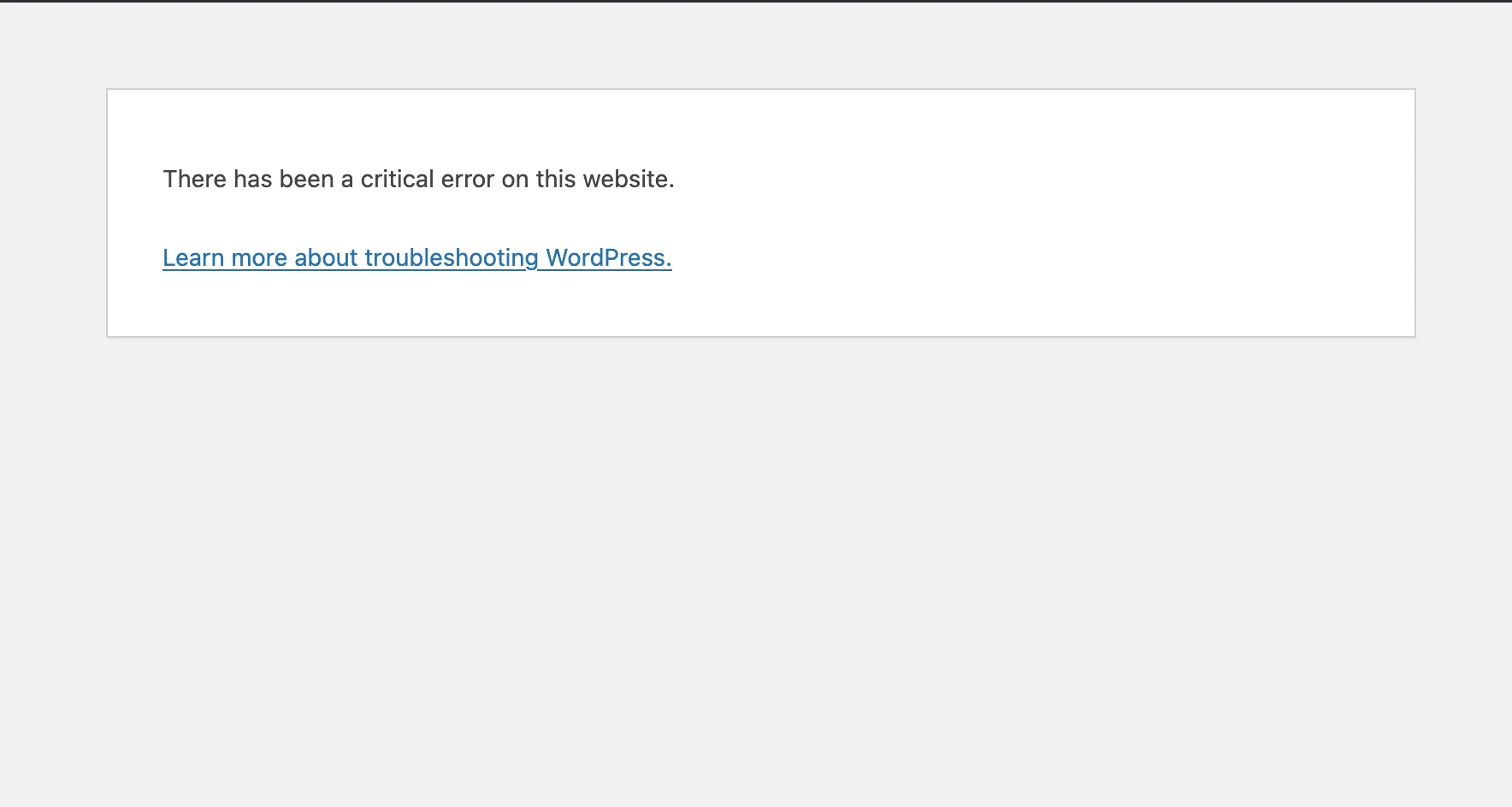
For someone managing their own website, there’s nothing more frustrating than the “There has been a critical error on this website” message from WordPress. Nothing else on the page. Seems like a dead end.
Assuming you don’t want to hire a professional to fix it, let’s unpack this black box.
Why am I seeing this message?
Computers, like the one that runs your website, speak in code. And if they can’t understand the code, they don’t know what to do.
In this case, WordPress is encountering invalid code. It could be code that wasn’t written correctly, or it could be code that led to an unexpected state.
Imagine you take orders in a restaurant. If all a diner can say to you is “Dog Zubat forks in the telephone but headphone internet”, you would be stuck. That’s bad code you can’t understand.
If a diner said “Yes, please wash my dog!” Well, you understand that, but there’s nothing you can do with it. It’s an unexpected state.
Computers are the same. In WordPress world, to prevent leaking potentially compromising information about your website to anyone who hits a broken page, it logs details about the error and shows this message.
Most often, this happens when an update to WordPress, a plugin, or your theme introduces bad code or a new conflict with other plugins or WordPress.
What do I do?
Restore a backup
The quickest way to get up and running is to restore a backup from your hosting provider (a company like GoDaddy or Bluehost or WP Engine or Kinsta or a million others). Not all hosts provide this, so consult your host. This is where good hosting is important. If you create backups with a WordPress plugin, but you can’t get into your WordPress site, those backups aren’t very helpful. Backups at the host level are much more fail-safe.
Try other pages
Sometimes an error like this only impacts some pages. If this is the public-facing side of your website, try to see if you can still get into the admin (https://example.com/wp-admin).
Deactivate plugins
If some pages on your site, like the admin, still work and you can get to the Plugins page, you can start deactivating plugins. You can try to go directly to the plugins page by typing “http://yourwebsite.com/wp-admin/plugins.php” into the URL bar.
Try deactivating all of them and then reactivate one or two at a time to try and identify the problem plugin.
Use a default theme
If deactivating all plugins doesn’t resolve it and you can get to the Themes page, switch to a default WordPress theme like Twenty Twenty-Four or Twenty Twenty-Five. You can access the Themes page directly by visiting “http://yourwebsite.com/wp-admin/themes.php”. If you don’t see one of those WordPress default themes, click the “Add Theme” button on that page and find one to install.
If you can’t get into the WordPress admin
If you’re a particularly technical non-technical person, you can try to use SSH access to your site to deactivate plugins. Your site’s host may have a place where you can copy an SSH command. Once again, this varies dramatically from host to host, so your mileage may vary. You can open a program like Terminal on a Mac or Windows Terminal on a Windows machine and copy and paste the SSH command into the terminal. You might have to enter a password, also found in your hosting dashboard somewhere.
If you can get in here, it will hopefully dump you right in the root of your website. This varies from host to host. Assuming you’re in the root of your website and your host offers WP-CLI, try the following:
wp plugin deactivate --all --skip-pluginsThis will deactivate all plugins on your site without needing admin access. The --skip-plugins part is important because it means WordPress will skip loading any active plugins, including the one that is probably causing your error.
If that doesn’t work, it won’t hurt anything. Onward.
Contact your web host
If all else fails, there’s a reason you pay your web host money. While some bottom-of-the-barrel hosting providers won’t provide any help for application-level errors like this, they might at least deactivate all your plugins so that you can move forward with debugging.
Or Contact Sterner Stuff
You can also wash your hands of this and contact Sterner Stuff. We’ll work with you to get back up and running pronto. Then you can read more about our hosting and maintenance service for WordPress where we take this headache off of your plate.
Leave a Reply